This website presents Software Application Utilities to Automate Keystrokes on Windows. Depending on purpose of your Keystroke Automaton, you can select appropriate Software Utility and download it from appropriate link. The Keyboard Automation Software Utilities presented here works on Windows 11, Windows 10 and other latest Windows Operating Systems. Do have a look at various Screenshots along with short description provided for each software application capable of Automating Keystrokes. Whether you wish to Automate Keystrokes using a Macro Script, Type Short or Long Text Sentences, Press and Release Single Keystroke Multiple Times or even Record and Playback Keystroke, it can be worth looking at screenshots provided. All the Keyboard Automation Software Utilities are digitally signed by Daanav Softwares, contain no malware or adware and are available on a free to download and try basis and works on 32 bit and 64 bit latest Windows Operating Systems like Windows 10, Windows 11, etc.
Simulate Keystrokes in Sequence with a Macro Script
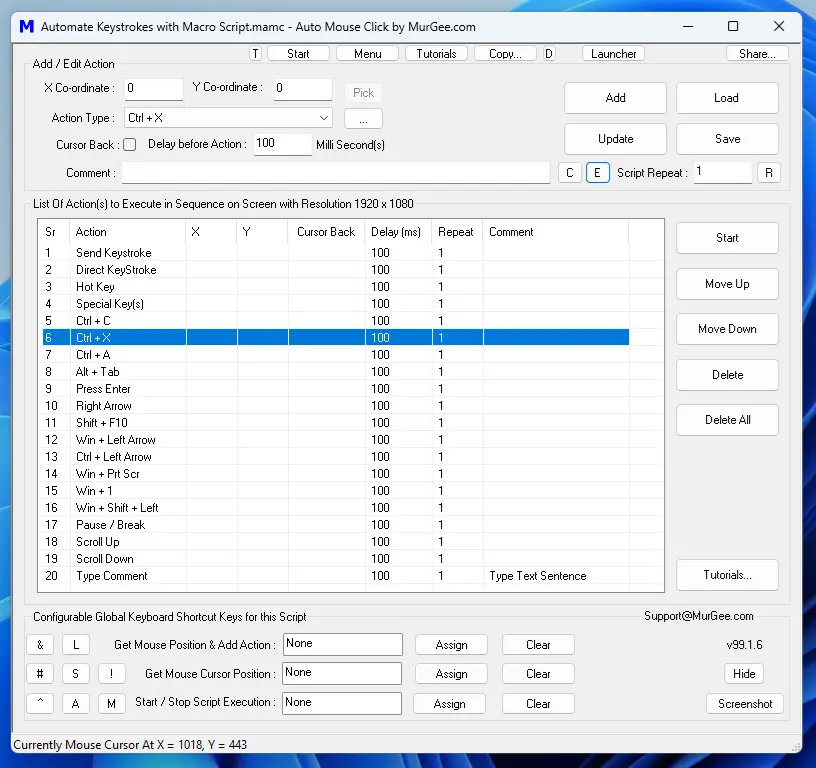
When you want to Automate Keystrokes to Automate a Repetitive Task, you can use Auto Mouse Click which allows you to create a Macro Script which can Automate Keystrokes in Sequence. The Screenshot below displays few Keystrokes which can be automated with this Windows Automation Utility. For each Keyboard Automation Action, you can assign Time Delay so that when current task of current Keystroke is to be executed, previous task has been completed. Yes you can even send Keystrokes to Active or Selected Window Application and almost any type of Keystroke Combination can be automated with the Software Application presented below.
Automated Typing of Text Sentences
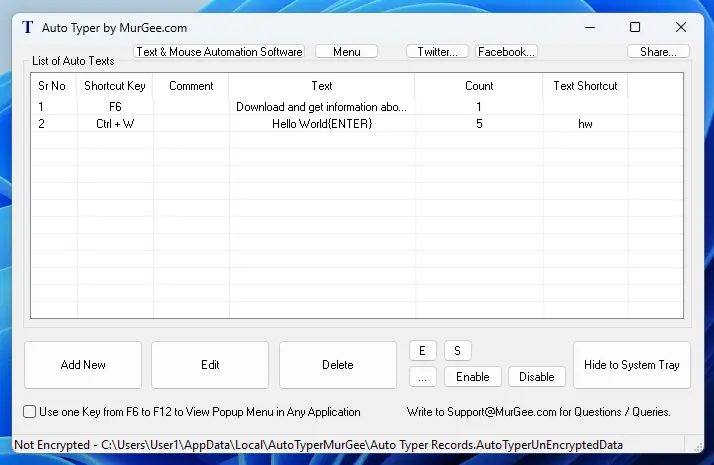
Auto Typer allows you to Automate Typing of Text Sentences by Automating Keystrokes including Key Down and Key Up, single or multiple times with Keyboard or Text Shortcut. This can be really handy when you have to manually type same text sentence over and over again. Configurable Keyboard Shortcut allows you to Start / Stop Automated Text Typing. The Text Shortcut works like Text Replacement and can be easy to remember as compared to Keyboard Shortcut like Ctrl+W, etc.
Press and Release Single Keystroke Multiple Times with Configurable Keyboard Shortcut
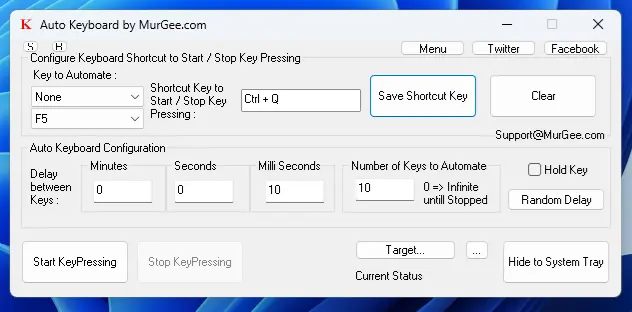
When you want to repeatedly press and release a single keystroke multiple times, you can use Auto Keyboard. As displayed in the Screenshot below, you can configure a Keyboard Shortcut to Start and Stop Automated Keystroke Pressing and Releasing. Configurable Time Delay between Keystroke Automation allows you to control the speed at which Automated Keystrokes are sent to active or selected application window.
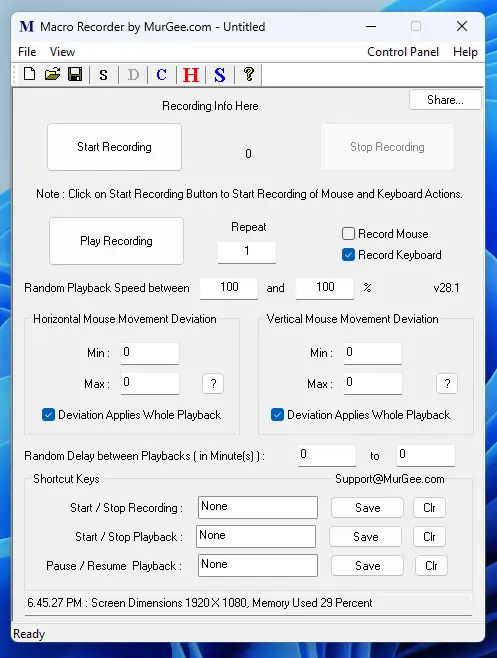
Record and Playback Keystrokes
You can use Macro Recorder to Record and Playback Keystrokes along with Mouse Clicks. The Recorded Keystrokes can be saved in a Data File and can be loaded at a later date and time as well. You can also repeat the recorded Keystrokes multiple times with Repeat Count feature present on the main screen of Macro Recorder. Configurable Keyboard Shortcuts allow you to Record and Playback Recorded Keystrokes and optionally Mouse Actions.